





How to Erase Data Before Selling Your Laptop
Selling an old laptop has become extremely common these days. It’s one of the easiest ways to fund the purchase of a new one. But there’s one thing people often forget — properly erasing...

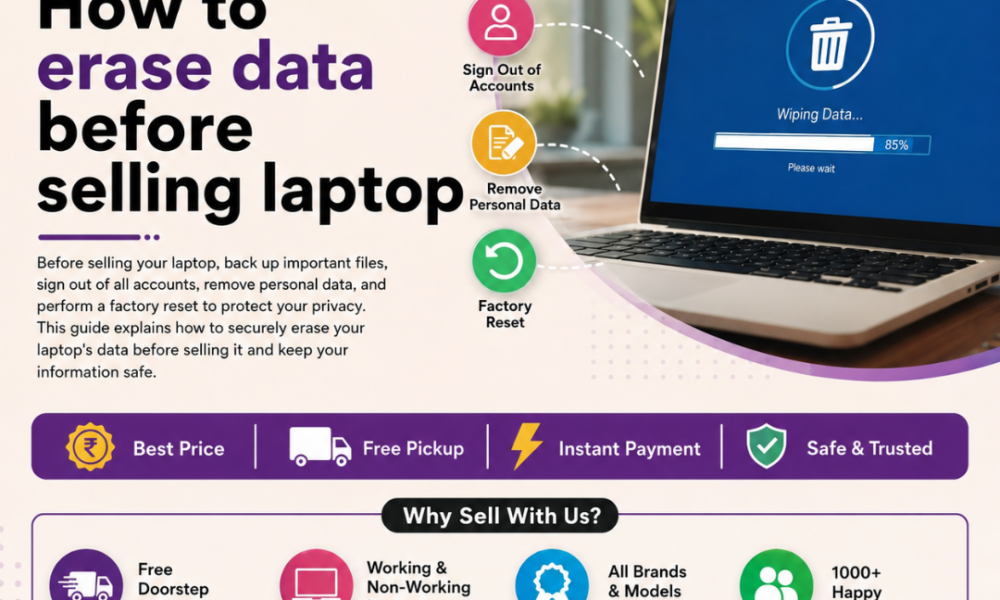
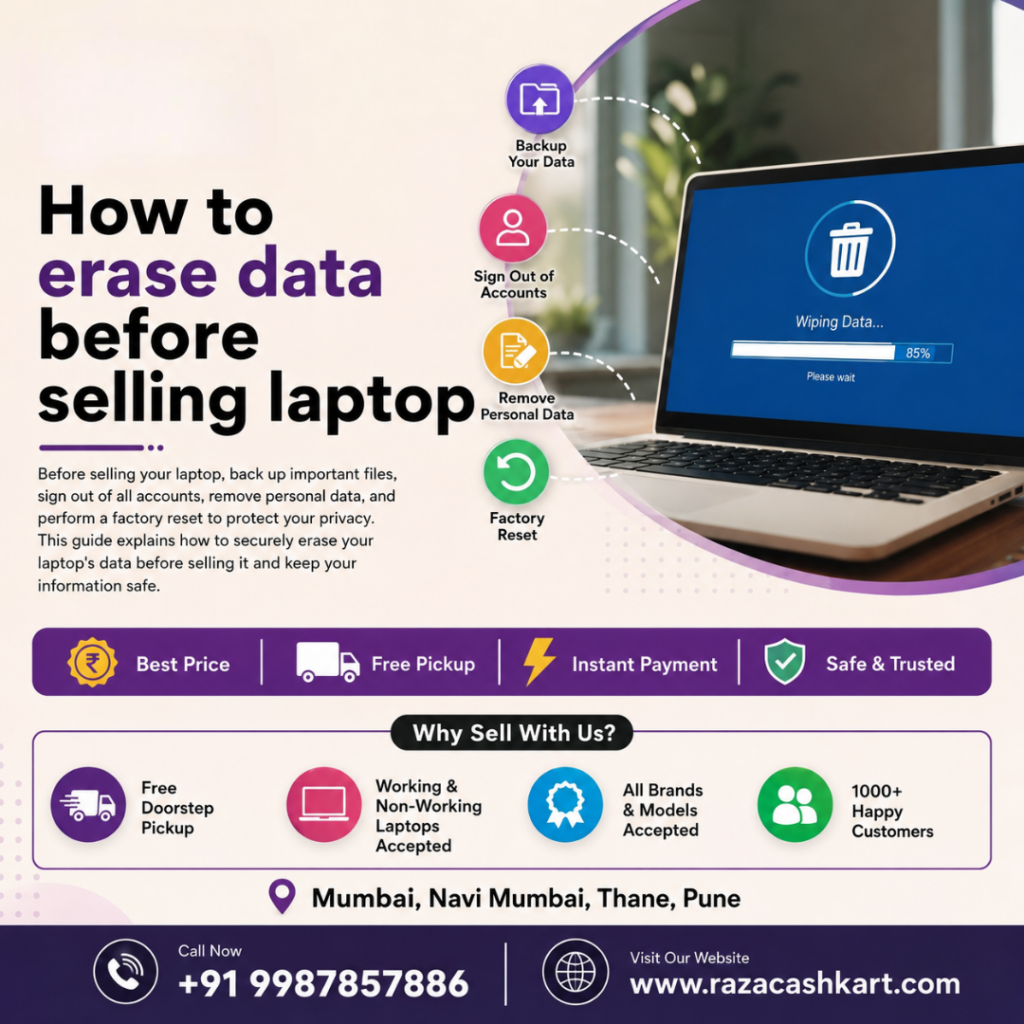
Selling an old laptop has become extremely common these days. It’s one of the easiest ways to fund the purchase of a new one. But there’s one thing people often forget — properly erasing their personal data. Simply emptying the “Recycle Bin” is not enough. Whether you’re planning to sell an old laptop in Pune or anywhere else, securely wiping your data is absolutely essential, or your personal and financial information could end up in the wrong hands.
Table Of Content
- Why Is Erasing Data So Important?
- Step 1: Back Up Your Important Data
- Step 2: Sign Out of All Accounts
- Step 3: Methods to Erase Your Data
- 1. Factory Reset (Basic Level)
- 2. Data Wiping Software (Advanced Level)
- 3. Encrypt Before Resetting (Extra-Safe Method)
- Step 4: Physically Remove the Storage Drive (Optional but Safest)
- Step 5: Verify That the Data Has Been Fully Erased
- Things to Keep in Mind When Selling an Old Laptop in Pune
- Conclusion
In this article, we’ll walk you through, step by step, how to safely erase data before selling your laptop, which tools to use, and what to keep in mind when you sell an old laptop in Pune.
Why Is Erasing Data So Important?
Many people assume that deleting files or performing a factory reset removes data permanently. In reality, normal deletion leaves data intact on the hard drive or SSD, and anyone with data recovery software can easily retrieve it.
If your laptop contained any of the following:
- Bank statements or net banking details
- Personal photos and videos
- Saved passwords and browser autofill data
- Office or business documents
- Scanned copies of Aadhaar, PAN card, etc.
- Emails and logged-in social media sessions
then selling your laptop without properly erasing it could expose you to identity theft, financial fraud, or a serious privacy breach. So whether you’re selling to a shop, listing it on an online platform, or arranging to sell old gaming laptop in Pune to a local buyer, erasing your data should always be the first step.
Step 1: Back Up Your Important Data
Before deleting anything, back up your important files so nothing valuable is lost.
What to back up:
- Documents, photos, and videos
- Browser bookmarks and saved passwords (if needed later)
- Software license keys
- Email settings or offline data
How to back it up:
- Copy files to an external hard drive or pen drive
- Use cloud storage like Google Drive, OneDrive, or Dropbox
- If you’ve already bought a new laptop, transfer everything directly to it
Only move to the next step once your backup is complete, or you risk losing important data permanently.
Step 2: Sign Out of All Accounts
Before selling, make sure you’re properly signed out of every account:
- Google/Gmail account
- Microsoft account
- Apple ID (if it’s a MacBook)
- Saved logins in your browser (Chrome, Edge, Firefox)
- Cloud storage apps (Google Drive, Dropbox, OneDrive)
- Deactivate licensed software from the device
If you’re selling a MacBook, make sure to disable Find My Mac, otherwise the new buyer won’t be able to activate the laptop at all.
Step 3: Methods to Erase Your Data
Now comes the most important part — permanently and securely erasing your data. Here are some reliable methods:
1. Factory Reset (Basic Level)
Both Windows and Mac come with a built-in factory reset option.
On Windows: Go to Settings → Update & Security → Recovery → Reset this PC → select “Remove everything” → choose the “Clean the drive fully” option (this is more secure than a regular reset because it overwrites the data).
On Mac: Go to System Settings → General → Transfer or Reset → Erase All Content and Settings.
Note: A simple factory reset is sometimes not enough, especially if your laptop held sensitive financial or business data. In such cases, it’s better to use more advanced, secure erasing tools.
2. Data Wiping Software (Advanced Level)
These tools overwrite your data multiple times, making it virtually impossible to recover — even with recovery software.
Some popular tools include:
- DBAN (Darik’s Boot and Nuke) – a free tool, good for hard drives
- CCleaner Drive Wiper – has an easy-to-use interface
- Eraser – a lightweight tool for Windows
- Secure Erase (for SSDs) – SSD manufacturers provide their own tools, such as Samsung Magician or Crucial Storage Executive
The wiping process differs for SSDs and HDDs, so choosing the right tool matters — for SSDs, the “Secure Erase” command is best, since traditional wiping methods can reduce an SSD’s lifespan.
3. Encrypt Before Resetting (Extra-Safe Method)
If you want to be extra cautious, encrypt the entire drive before resetting (use BitLocker on Windows or FileVault on Mac). After encryption, when you reset the device, any leftover data becomes unreadable, making recovery even harder.
Step 4: Physically Remove the Storage Drive (Optional but Safest)
If you want to be 100% certain, you can remove the internal hard drive or SSD before selling the laptop, and sell the laptop without storage (some buyers accept this, especially if you’re also selling components separately). This method is a bit technical, so if you’re not comfortable handling hardware, get help from a local technician.
Step 5: Verify That the Data Has Been Fully Erased
After erasing your data, always do a final check:
- Restart the laptop and confirm that no personal files, apps, or saved logins remain
- Use data recovery software (like Recuva) to test whether any files can still be recovered
- The storage drive should appear completely empty, like a fresh install
Things to Keep in Mind When Selling an Old Laptop in Pune
If you’re planning to sell an old laptop in Pune, follow these additional tips:
- Choose trusted buyers – sell through established online marketplaces (OLX, Cashify, Quikr) or reputable local refurbished laptop dealers
- Keep your bill/invoice ready – this builds trust with the buyer and can help you get a better price
- Meet in a safe, public location – prefer popular market areas or public spaces in Pune for in-person meetings
- Verify payment immediately – confirm cash or UPI payment on the spot, and hand over the laptop only after payment is confirmed
- Erase your data before scheduling the meeting, so there’s no last-minute rush
Thanks to Pune’s active community of IT professionals and students, the refurbished laptop market here is quite strong — which means a laptop in good condition with properly wiped data tends to attract better demand and pricing.
Conclusion
Selling a laptop is easy, but properly erasing your data beforehand is just as important as negotiating the price. A simple delete or factory reset isn’t always enough — steps like data wiping software, encryption, or physical drive removal are what truly protect your privacy.
Whether you’re selling to a local buyer in Pune or listing your laptop on online platform, following the steps above will help you keep your personal and financial data completely safe — and ensure a smooth, secure selling experience.






No Comment! Be the first one.