






Migrate to QuickBooks by QuickBooks Migration Tool
Migrating accounting data from one software to another can seem overwhelming, especially when years of financial records are involved. Fortunately, the QuickBooks Migration Tool simplifies this...

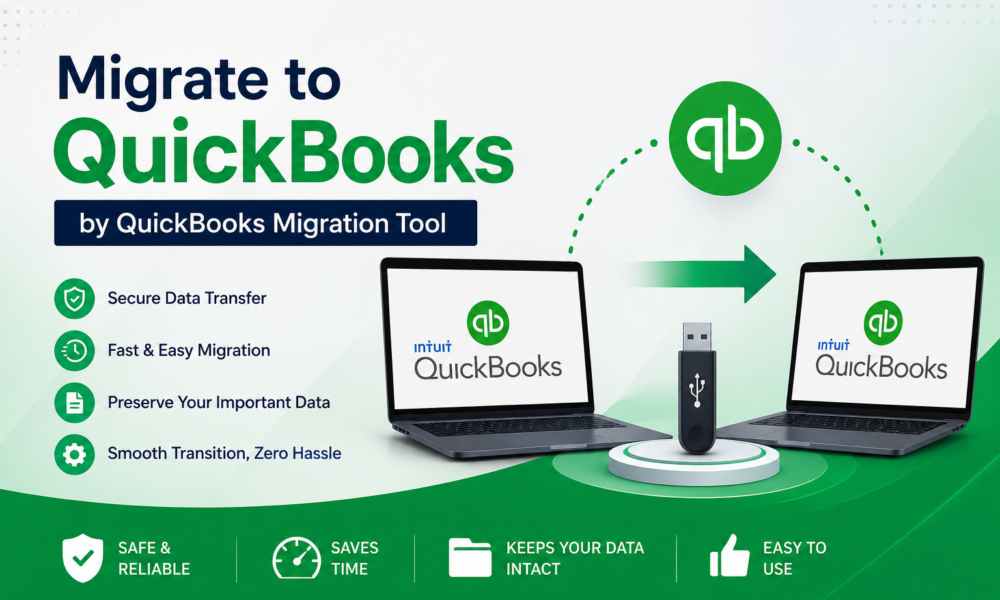
Migrating accounting data from one software to another can seem overwhelming, especially when years of financial records are involved. Fortunately, the QuickBooks Migration Tool simplifies this process by helping businesses transfer their company files securely and efficiently. Whether you’re upgrading to a newer version of QuickBooks or moving from another computer, the migration tool minimizes manual work while preserving the integrity of your financial data.
Table Of Content
- What Is the QuickBooks Migration Tool?
- Why Should You Use the QuickBooks Migration Tool?
- Faster Migration Process
- Preserves Company Data
- Reduces Human Errors
- User-Friendly Interface
- Secure Data Transfer
- What Does the QuickBooks Migration Tool Transfer?
- System Requirements Before Migrating
- How to Migrate to QuickBooks Using the QuickBooks Migration Tool
- Step 1: Prepare the Old Computer
- Step 2: Open the Migration Tool
- Step 3: Create a One-Time Password
- Step 4: Insert the USB Flash Drive
- Step 5: Set Up the New Computer
- Step 6: Enter the One-Time Password
- Step 7: Complete the Migration
- Best Practices Before Migrating QuickBooks Data
- Create a Full Backup
- Update QuickBooks
- Verify Data Integrity
- Disable Antivirus Temporarily
- Ensure Stable Power Supply
- Common Migration Issues and Their Solutions
- Migration Tool Not Opening
- One-Time Password Not Working
- Company File Won’t Open After Migration
- Migration Stops Midway
- Tips for a Successful QuickBooks Migration
- Advantages of Using the QuickBooks Migration Tool
- When Should You Use the QuickBooks Migration Tool?
- Frequently Asked Questions (FAQs)
- Q1. Can I migrate QuickBooks without a USB drive?
- Q2. Will the migration tool transfer payroll information?
- Q3. Does the migration tool delete data from the old computer?
- Q4. Can I migrate to a different QuickBooks version?
- Q5. Is a backup necessary before migration?
In this guide, you’ll learn everything about the QuickBooks Migration Tool, including its features, benefits, system requirements, migration steps, common issues, and best practices for a successful transition.
What Is the QuickBooks Migration Tool?
The QuickBooks Migration Tool is a built-in utility designed to help users transfer QuickBooks Desktop data, settings, and company files from an old computer to a new one. Instead of manually copying multiple files and configuring the software again, the migration tool automates most of the process.
The tool creates a secure migration package using a USB flash drive and transfers the required QuickBooks components to the new system, saving both time and effort.
Why Should You Use the QuickBooks Migration Tool?
Using the migration tool offers several advantages over manual data transfer methods.
Faster Migration Process
The tool automates file transfers, significantly reducing the time needed to move accounting data.
Preserves Company Data
It safely transfers your company files while maintaining their structure and accuracy.
Reduces Human Errors
Manual copying may lead to missing files or incorrect folder placement. The migration tool minimizes these risks.
User-Friendly Interface
Even users with limited technical knowledge can complete the migration by following simple on-screen instructions.
Secure Data Transfer
Your accounting information remains protected throughout the migration process.
What Does the QuickBooks Migration Tool Transfer?
The migration tool is capable of transferring several important QuickBooks components, including:
- Company files (.QBW)
- Templates
- Letters
- Financial reports
- Local attachments
- Custom forms
- User preferences
- Related QuickBooks data files
However, it does not transfer every system-specific setting, such as Windows user accounts or third-party software integrations.
System Requirements Before Migrating
Before starting the migration process, ensure the following requirements are met:
- QuickBooks Desktop is installed on both computers.
- Both systems meet QuickBooks’ minimum hardware specifications.
- You have administrator privileges on both devices.
- A USB flash drive with sufficient free space is available.
- Stable internet connection (for QuickBooks activation and updates).
- The company file is free from corruption.
- Create a complete backup before beginning the migration.
How to Migrate to QuickBooks Using the QuickBooks Migration Tool
Follow these steps carefully for a successful migration.
Step 1: Prepare the Old Computer
- Open QuickBooks Desktop.
- Log in as the Administrator.
- Close all company files except the one you want to migrate.
Step 2: Open the Migration Tool
- Open the QuickBooks Migration Tool.
- Navigate to File.
- Select Utilities.
- Click Move QuickBooks to another computer.
- Choose I’m Ready.
Step 3: Create a One-Time Password
QuickBooks will generate a one-time password that will later be required on the new computer.
Keep this password safe until the migration process is completed.
Step 4: Insert the USB Flash Drive
Insert a USB drive when prompted.
The migration tool copies the required QuickBooks files and creates the migration package.
Step 5: Set Up the New Computer
- Install the same version of QuickBooks Desktop.
- Insert the USB drive.
- Launch the Migration Tool automatically from the USB.
Step 6: Enter the One-Time Password
Provide the password generated on the old computer.
The tool verifies your identity and starts transferring the QuickBooks data.
Step 7: Complete the Migration
Once the process finishes:
- Open QuickBooks.
- Verify that the company file opens correctly.
- Check reports, customer data, vendors, payroll information, and transactions.
Best Practices Before Migrating QuickBooks Data
To ensure a smooth migration experience, follow these recommendations:
Create a Full Backup
Always back up your QuickBooks company file before making any changes.
Update QuickBooks
Install the latest QuickBooks updates to avoid compatibility issues.
Verify Data Integrity
Use the Verify Data utility to identify and resolve data problems before migration.
Disable Antivirus Temporarily
Some security software may interrupt the migration process.
Ensure Stable Power Supply
Avoid shutting down either computer during migration.
Common Migration Issues and Their Solutions
Although the migration tool is reliable, users may occasionally encounter issues.
Migration Tool Not Opening
Possible Causes:
- Damaged QuickBooks installation
- Missing Windows components
Solution:
- Repair QuickBooks installation.
- Install pending Windows updates.
- Restart the computer.
One-Time Password Not Working
Solution:
- Generate a new password.
- Ensure both systems are using the same QuickBooks version.
Company File Won’t Open After Migration
Solution:
- Restore the latest backup.
- Run the Verify and Rebuild Data utilities.
- Confirm the file location is correct.
Migration Stops Midway
Solution:
- Check available disk space.
- Disable antivirus temporarily.
- Reconnect the USB drive.
- Restart both computers.
Tips for a Successful QuickBooks Migration
To reduce the chances of migration errors:
- Perform migration during non-business hours.
- Close all unnecessary applications.
- Avoid interrupting the transfer.
- Keep the USB connected throughout the process.
- Verify all financial data after migration.
- Store your backup safely even after successful migration.
Advantages of Using the QuickBooks Migration Tool
Businesses choose the migration tool because it offers several practical benefits:
- Quick and automated transfer
- Reduced downtime
- Better data accuracy
- Secure migration process
- Easy setup on a new computer
- Minimal technical expertise required
- Lower risk of missing important files
When Should You Use the QuickBooks Migration Tool?
The migration tool is especially useful in situations such as:
- Purchasing a new computer
- Replacing an old workstation
- Upgrading office hardware
- Reinstalling QuickBooks on another system
- Moving accounting operations to a different device
Conclusion
Migrating your accounting data doesn’t have to be a complicated task. The QuickBooks Migration Tool provides a reliable, secure, and efficient way to transfer your QuickBooks Desktop environment to a new computer without manually copying every file. By preparing your system, creating a backup, following the migration steps carefully, and verifying your data afterward, you can ensure a smooth transition with minimal downtime.
Whether you’re upgrading your hardware, replacing an old device, or setting up a new workstation, using the QuickBooks Migration Tool helps safeguard your financial information while allowing you to resume business operations quickly and confidently.
Frequently Asked Questions (FAQs)
Q1. Can I migrate QuickBooks without a USB drive?
The built-in migration tool is primarily designed to work with a USB flash drive. If a USB is unavailable, you may need to manually transfer your company file or use other supported methods.
Q2. Will the migration tool transfer payroll information?
Yes, most payroll-related data stored within your QuickBooks company file is transferred. However, certain payroll services may require reactivation on the new computer.
Q3. Does the migration tool delete data from the old computer?
No. The migration tool copies your QuickBooks data to the new computer. Your original files remain on the old system unless you remove them manually.
Q4. Can I migrate to a different QuickBooks version?
For the smoothest experience, use the same QuickBooks Desktop version on both computers. Upgrading to a newer version may require additional conversion steps.
Q5. Is a backup necessary before migration?
Yes. Creating a complete backup is strongly recommended to protect your financial data in case any unexpected issue occurs.






No Comment! Be the first one.